
Ideas for better growth
How to Add a Store Locator for Multiple Branches
Chris Content · · 5 min read
Help customers find the nearest branch: search, distance sorting, per-branch hours and directions, and the location data hygiene that makes it all work.
Once a business has more than three locations, a single embedded map stops working. The pins overlap, the visitor cannot tell which branch is nearest, and nothing on the page says whether any of them is open right now.
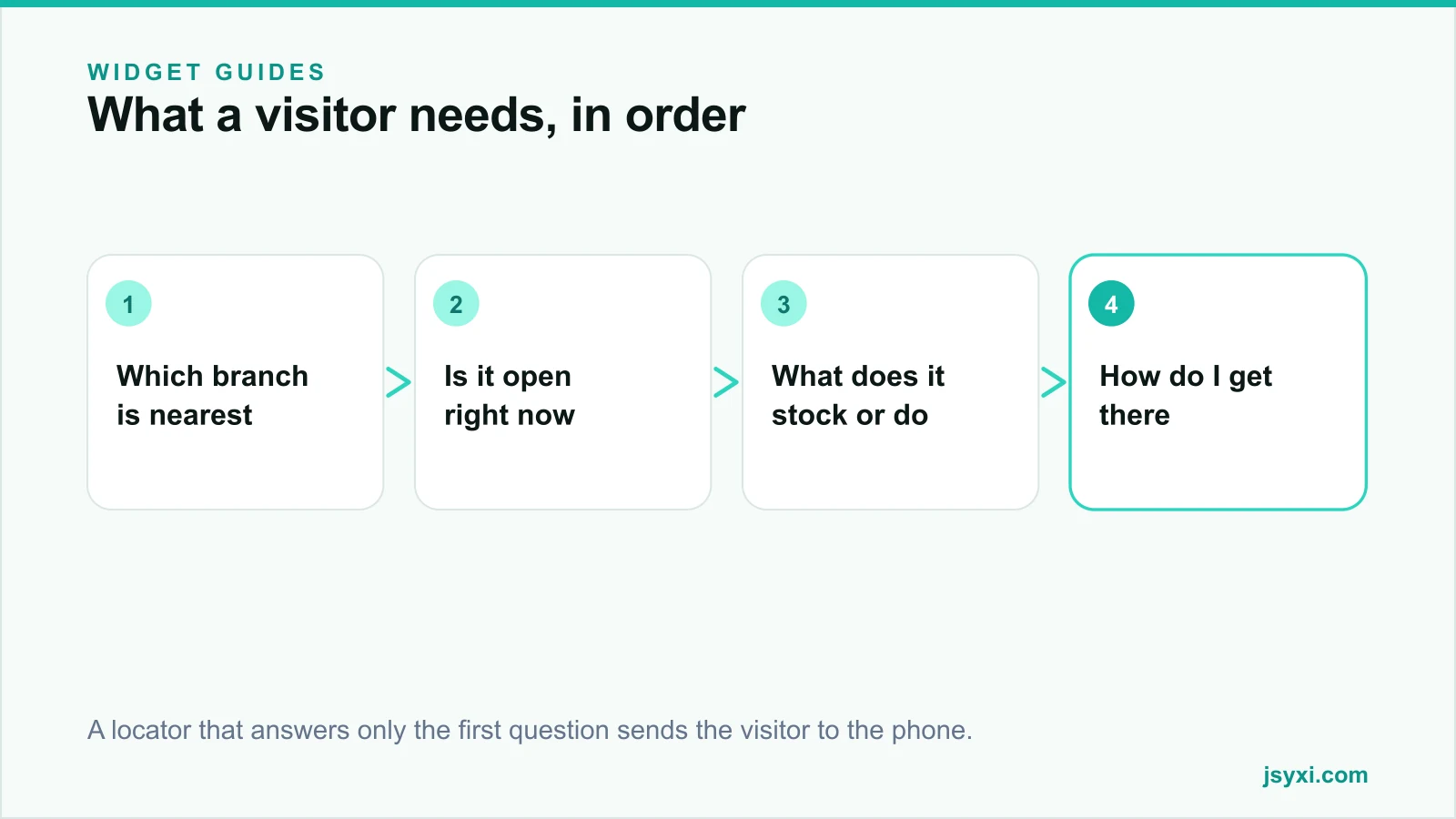
A store locator answers four questions in sequence: which branch is nearest, is it open, does it have what I need, and how do I get there. This guide covers how to build one that answers all four.
Step 1: Clean the location data first
A locator is a data product. Bad data produces confident, wrong answers. For each branch, record:
- Full postal address, formatted consistently
- Latitude and longitude, verified on a map rather than guessed
- Phone number specific to that branch
- Opening hours, including weekly offs and regional holidays
- Services or stock available there, if branches differ
- Parking, entrance, and accessibility notes
- A landmark line, because that is how people actually navigate
Verify the coordinates by dropping each pin and checking the building. A pin on the wrong side of a divided road can add fifteen minutes to a journey.
Step 2: Sort by distance, not by alphabet
Visitors want the nearest branch, not the first one alphabetically. The Store Locator widget pairs an interactive map with a synchronised list, so selecting a pin highlights the entry and vice versa.
Get these behaviours right:
- Search by PIN code, city, or area name, because most people know their PIN code but not their coordinates
- Optional geolocation, requested only when the visitor asks for "near me", never on page load
- Distance shown per result, so the ranking is explainable
- A sensible default view when nothing is searched - usually all branches, zoomed to fit
Never demand location permission before showing anything. A permission prompt on arrival is the fastest way to lose a visitor who was ready to walk in.
Step 3: Put the decisive facts in the list item
Each result should carry enough information to decide without opening a detail page:
- Branch name and area
- Distance from the searched location
- Open or closed right now, with the next transition time
- Phone number as a tap-to-call link
- A directions action that opens the native maps app
- Any branch-specific note - service centre, pickup point, weekend-only
Pair the locator with a Business Hours widget per branch so the open state stays accurate through holidays.
Step 4: Give every branch its own page
A locator is a finding tool. A branch page is what search engines rank and what customers link to.
Each location page should carry:
- The address as selectable text, with the area and PIN code in the heading
- Hours, phone, and a directions action
- Photos of the actual storefront, so people recognise it from the road
- Staff or manager name if you want it to feel local
- Reviews specific to that branch
- A short paragraph of genuinely local content - parking advice, nearby landmarks, what this branch is known for
Thin duplicate pages with only the address swapped will not rank. Our local SEO checklist covers what to publish per location.
Step 5: Handle the awkward cases
Real branch networks are messy. Decide in advance what happens when:
- A search returns nothing nearby. Show the closest few anyway, with distance, plus an online alternative.
- Two branches are equidistant. Break the tie by opening status, then by services.
- A branch is temporarily closed. Say so on the pin, the list, and the branch page. Do not just hide it - people will search for it.
- A branch moves. Redirect the old page rather than deleting it.
- Geolocation is denied. Fall back to the search box without an error message.
Step 6: Keep it fast
A locator loads map tiles, marker data, and a list. On a phone, in a shop doorway, on a weak connection, that has to be quick:
- Load the list from lightweight data first, then the map
- Lazy load the map if the locator is below the fold
- Reserve the map's space so the list does not jump when it arrives
- Cap results per page and let the visitor load more
See protecting Core Web Vitals with widgets for the measurement approach.
Common mistakes to avoid
- Requesting location permission on page load. Ask when the visitor taps "near me".
- Listing branches alphabetically. Nobody wants the branch that starts with A.
- One phone number for every branch. Local numbers get answered; central numbers get queued.
- Hiding closed branches. People search for a branch they know; tell them it is closed.
- No directions action. An address without a directions link makes the visitor do the work twice.
Frequently asked questions
How many locations before I need a store locator?
Around four. Up to three, a simple list with addresses, hours, and directions links is faster to use and faster to load. Beyond that, visitors need search and distance sorting.
Should each store have its own page?
Yes, if you want local search visibility. Each page needs genuinely local content - hours, photos, parking, reviews - not just the address swapped into a template.
Should the locator ask for the visitor's location automatically?
No. Provide a search box by default and offer a "use my location" action. Automatic permission prompts on arrival are dismissed by most visitors and can block the content behind them.
What if a branch is temporarily closed?
Show it with a clear closed status and the expected reopening date on the pin, in the list, and on the branch page. Hiding it makes people think the business has shut down.
Next steps
Audit your branch data for accurate coordinates and hours, publish it with the Store Locator widget, and give each branch its own page with genuinely local content.
Start free and get your locations findable.