
Ideas for better growth
How to Add a Photo Gallery With a Lightbox
Chris Content · · 5 min read

Build a fast, touch-friendly photo gallery with a lightbox, covering image sizing, alt text, layout choices, and the accessibility details most galleries miss.
A photo gallery is how a visitor inspects something they cannot touch. For a hotel, a workshop, a salon, a manufacturer, or a fashion label, it is often the single most persuasive element on the page, and often the heaviest.
This guide covers how to build a gallery that answers the visitor's real question, opens into a usable lightbox, and does not destroy your page speed.
Decide what the gallery must prove
Galleries fail when they are a dump of every photo the business owns. Start by naming the question the visitor is asking:
- Scale and fit - how big is this, will it work in my space?
- Quality and finish - what does it look like close up?
- Context and use - what does it look like in a real setting?
- Range - how many options are there?
- Proof of work - did you really do this project?
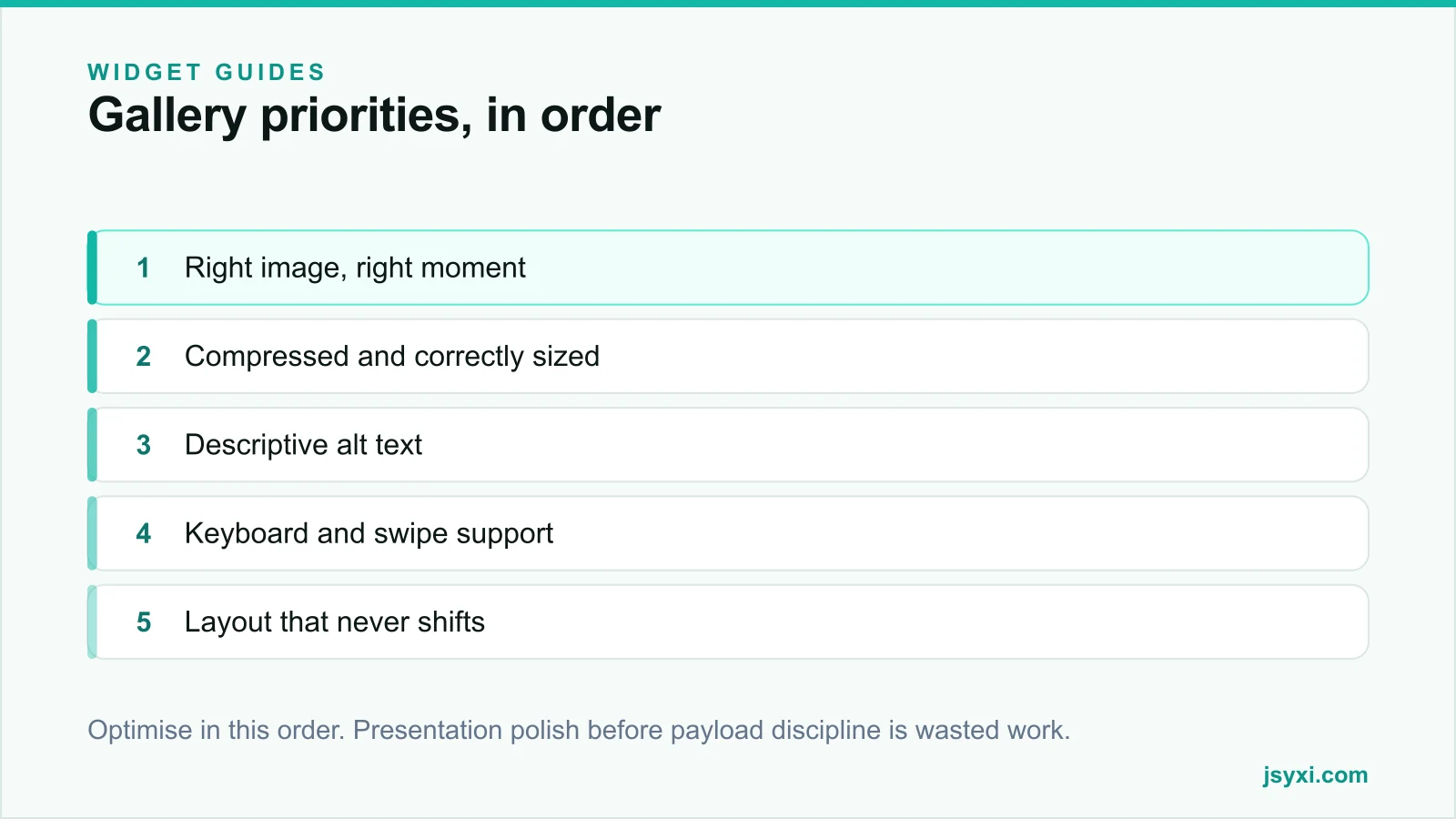
Then choose images that answer that question and cut the rest. A tight set of eight strong images outperforms forty repetitive ones, and loads far faster.
Step 1: Prepare the images properly
Most gallery performance problems are created before the widget is involved. Prepare each image:
- Crop to a consistent aspect ratio so the grid does not look ragged and the layout does not shift.
- Export at roughly twice the display size, not at camera resolution. A thumbnail shown at 400px wide does not need a 4000px file.
- Compress to a modern format. WebP or AVIF at a sensible quality is usually a fraction of the JPEG size at the same visual quality.
- Name the files descriptively. Meaningful filenames help image search and help your own team find things later.
Our image optimization guide has the full workflow, including how to choose quality settings without guessing.
Step 2: Choose a layout that matches the content
Three layouts cover almost every case:
- Uniform grid. Best for catalogues, product ranges, and team photos where consistency matters more than composition.
- Masonry. Best for mixed orientations - interiors, events, editorial photography - where cropping to a single ratio would lose the shot.
- Carousel. Best when the images are sequential or vertical space is scarce, but weaker for browsing because it hides most of the set.
For a portfolio of completed projects with descriptions, a filterable Portfolio widget fits better than a plain gallery. For a range of images on a product page, a grid plus lightbox is usually right.
Step 3: Add the gallery without touching your theme
The Photo Gallery widget handles the grid, the lightbox, and the touch behaviour. Upload your prepared images, set columns and spacing, write the alt text, publish, and paste the embed line where the gallery belongs.
Configure these:
- Columns at desktop, tablet, and phone widths
- Gap size, kept consistent with the rest of your page rhythm
- Whether captions appear under thumbnails, in the lightbox, or both
- Lazy loading, so off-screen images do not download on first paint
Then follow the embed snippet guide to place it.
Step 4: Make the lightbox usable
A lightbox is a modal, and modals have rules. Yours should:
- Close predictably with a visible close button, the Escape key, and a tap outside the image
- Support swipe left and right on touch devices, and arrow keys on desktop
- Trap focus while open, so keyboard users cannot tab into the page behind it
- Restore focus to the thumbnail that opened it on close
- Show position, such as "4 of 12", so the visitor knows how much is left
- Never autoplay or rotate on its own
Test with a keyboard only. If you cannot open the fourth image, move to the fifth, and close back to where you started, the lightbox is not finished.
Step 5: Write alt text that earns its place
Alt text is not a keyword slot. It describes what the image shows to someone who cannot see it, and it is what image search reads.
- Describe the subject and the relevant detail: "Walnut dining table with tapered legs, seating six".
- Skip "image of" and "photo of".
- Leave alt empty only for purely decorative images.
- Never repeat the same alt text across a whole gallery.
If a caption already describes the image on screen, the alt text can be shorter, but it should still identify the subject.
Step 6: Protect page speed
A gallery is the easiest way to ruin a Largest Contentful Paint score. Protect it:
- Lazy load everything below the fold; eagerly load only the first row.
- Set explicit dimensions or an aspect ratio on every thumbnail so nothing shifts as images arrive.
- Serve responsive sizes so phones do not download desktop images.
- Cap the initial set and paginate or "load more" beyond it.
Then measure the real result rather than trusting the theory - our guide on measuring widget performance shows how.
Common mistakes to avoid
- Uploading straight from the camera. A 6MB hero image is a bounce, not a photograph.
- Autoplaying carousels. They move away from the image the visitor was reading.
- Text baked into images. It cannot be read, searched, translated, or resized.
- Identical alt text everywhere. It helps nobody and looks spammy.
- No empty state. If a category has no images yet, say so rather than showing a broken grid.
Frequently asked questions
How many images should a gallery have?
Enough to answer the visitor's question and no more - usually eight to twenty for a page-level gallery. Beyond that, split by category or add a "load more" control so the first paint stays light.
Does a photo gallery hurt SEO?
Only when it is slow or unlabelled. Compressed, correctly sized images with descriptive alt text and stable layout help the page; huge unoptimised images that cause layout shift hurt it.
What is the best image format for a web gallery?
WebP for broad support with good compression, AVIF where you want smaller files and can accept slightly narrower support. Keep a JPEG fallback if your platform needs one.
Should the lightbox show captions?
Show a caption when it adds information the image cannot carry alone - dimensions, materials, location, or project name. Decorative captions just add clutter.
Next steps
Choose the eight images that actually answer your visitor's question, compress and size them properly, and publish them with the Photo Gallery widget. If you are showing completed projects, use the Portfolio widget so each item can carry its own detail.
Start free and get a fast gallery live today.