
Ideas for better growth
How to Add a Google Map to Your Website
Chris Content · · 6 min read
Embed a map that loads fast, shows the right pin, and gives visitors one-tap directions, without slowing your page down or trapping their scroll.
A map on a contact page looks simple, but most implementations quietly fail the one job they have: getting a real person from their phone to your door. The pin sits on the wrong side of the road, the address is baked into an image so it cannot be copied, and the embed loads a heavy third-party frame on every page view.
This guide covers how to place a map that is accurate, fast, and genuinely useful on a phone.
Decide what the map is for
Before embedding anything, decide which job the map does on this page:
- Confirm you are real. A visitor checking that a business has a physical presence.
- Navigate. A customer who has decided to visit and needs directions now.
- Choose a branch. A visitor picking between several locations.
The first job needs a small static map and a clear address. The second needs a directions link that opens the native maps app. The third needs a list synchronised with the map, which is a different widget entirely.
Trying to do all three with one giant interactive frame usually does all three badly.
Get the location right first
An embed is only as good as the coordinates behind it. Before you publish:
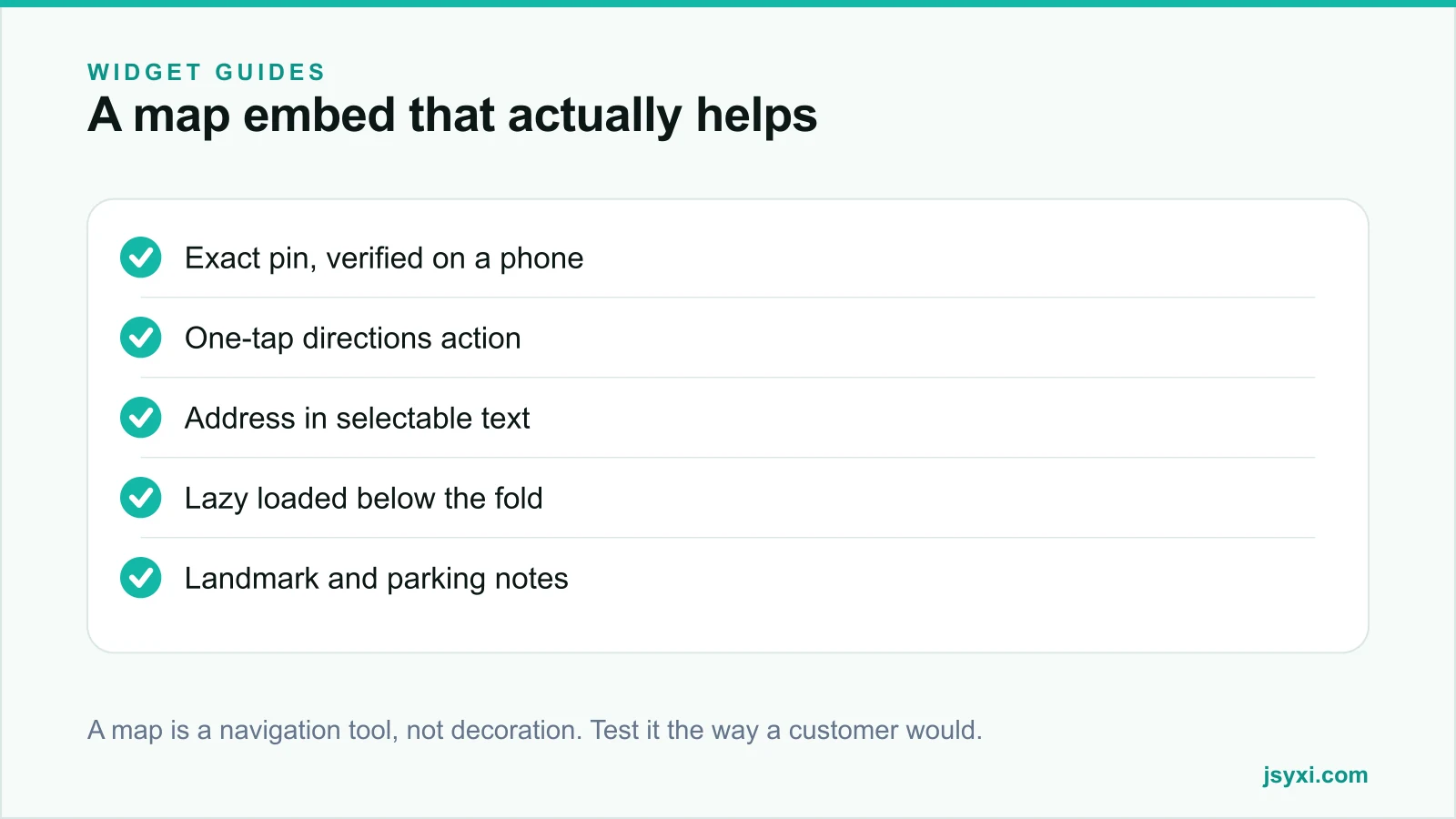
- Search your business name and address in Google Maps on a phone.
- Check that the pin sits on the correct building, not the centroid of the street or a neighbouring plot.
- Follow the driving directions from a main road and see where they actually end.
- If the pin is wrong, fix it at the source in your Google Business Profile rather than nudging the embed.
Getting this right also improves local search, because the same profile powers map results. Our Google Business Profile checklist covers the rest of that setup.
Step 1: Add the map without editing your theme
With the Maps widget you enter the address, choose the zoom level and style, and publish. You then paste a single embed line into your contact page, footer, or store page.
Configure these four things carefully:
- Zoom level. Close enough to identify the building, wide enough to show a recognisable landmark. Street level for a shop, wider for an industrial address.
- Height. Tall enough to be legible on a phone without pushing your address and phone number off the screen.
- Marker label. Your business name, not "Location".
- Directions action. A visible button, not just a draggable map.
Paste the snippet where the map belongs using the embed snippet guide. Changing the address later is an edit in your workspace, not a code change on every page.
Step 2: Keep the address as real text
The single most common mistake is publishing the address only inside the map. Always print the full address as selectable text next to the map, including:
- Building name and number, street, area, city, state, PIN code
- A landmark line, because a lot of navigation still runs on landmarks
- Phone number as a tappable link
- Opening hours, or a link to them
Selectable text lets a visitor copy the address into their own app, lets a screen reader announce it, and gives search engines something to associate with your location. A simple Custom Button can carry the call and directions actions.
Step 3: Protect page speed
A full interactive map is one of the heaviest things you can put on a page. It pulls scripts, tiles, and fonts from a third-party domain, and it usually sits on your contact page, which is a high-intent page you cannot afford to make slow.
Three practical protections:
- Load below the fold and lazily. The map should not compete with hero content for bandwidth.
- Reserve the space. Give the container a fixed aspect ratio so the page does not jump when the map arrives. Layout shift on a contact page is how phone numbers get mis-tapped.
- Consider a static preview. A lightweight image with a "View on map" action is enough for the "confirm you are real" job and costs a fraction of the payload.
Our guide on protecting Core Web Vitals with third-party widgets covers the measurement side.
Step 4: Make it work on a phone
Most people who need directions are already on a phone, often outside, often on a poor connection. Test the real journey:
- Tap the directions button. Does it open the native maps app with the destination pre-filled?
- Can you scroll past the map without the page trapping your finger inside it?
- Is the address legible at arm's length in daylight?
- Does the phone number dial in one tap?
A map that traps scroll is a bounce generator. If your embed does this, disable drag-to-pan and keep a clear "open in maps" action instead.
Step 5: Handle multiple locations properly
Once you have more than three locations, a single embedded map stops working. Visitors need to filter, compare, and pick the nearest branch.
That is the job of a Store Locator: a searchable list synchronised with map pins, showing distance, hours, and a directions action per branch. Each location should also have its own page with its own address text if you want local visibility for that area.
Common mistakes to avoid
- A screenshot instead of a map. It cannot be copied, tapped, or navigated.
- The wrong pin, never verified on a phone. Test it from outside your office, not from your desk.
- An interactive map above the fold. It is heavy and it hijacks scroll.
- Hiding the address behind the map. Always publish it as text.
- Forgetting the hours. People plan a visit around opening times; pair the map with a Business Hours widget.
Frequently asked questions
Does embedding a map slow down my website?
An interactive map embed is heavy, typically the largest third-party payload on a contact page. Load it lazily, reserve its space to avoid layout shift, and consider a static image preview with a directions link when the map is only there for reassurance.
Do I need an API key to embed a map?
For a basic place embed, usually not. For custom styling, multiple markers, or programmatic behaviour you will need a key and should watch the usage quota. A no-code widget handles this for you and keeps the configuration out of your theme.
Where should the map go on my contact page?
Below your address, phone number, and hours. Visitors want the facts first; the map confirms and navigates. Putting the map first pushes the information most people came for below the fold.
How do I show directions rather than just a location?
Give the visitor an explicit directions action that opens their native maps app with your address as the destination. Do not rely on them tapping the pin and finding the option themselves.
Next steps
Publish your address as text, add the Maps widget below it, and test the directions button from a phone outside your building. If you run more than three branches, move to a Store Locator and give each location its own page.
Start free and get your map live this afternoon.