
Ideas for better growth
How to Add an Accessibility Toolbar
Chris Content · · 4 min read

An accessibility toolbar helps some visitors and fixes nothing structural. What it can genuinely do, what it cannot, and why overlays are not compliance.
An accessibility toolbar lets a visitor adjust text size, contrast, and motion on your site without changing their whole system. That is genuinely useful for some people, particularly those who do not know their browser can already do it.
It is also marketed, frequently and misleadingly, as a way to make a website compliant. It is not, and treating it as one creates risk rather than removing it.
What a toolbar can genuinely do
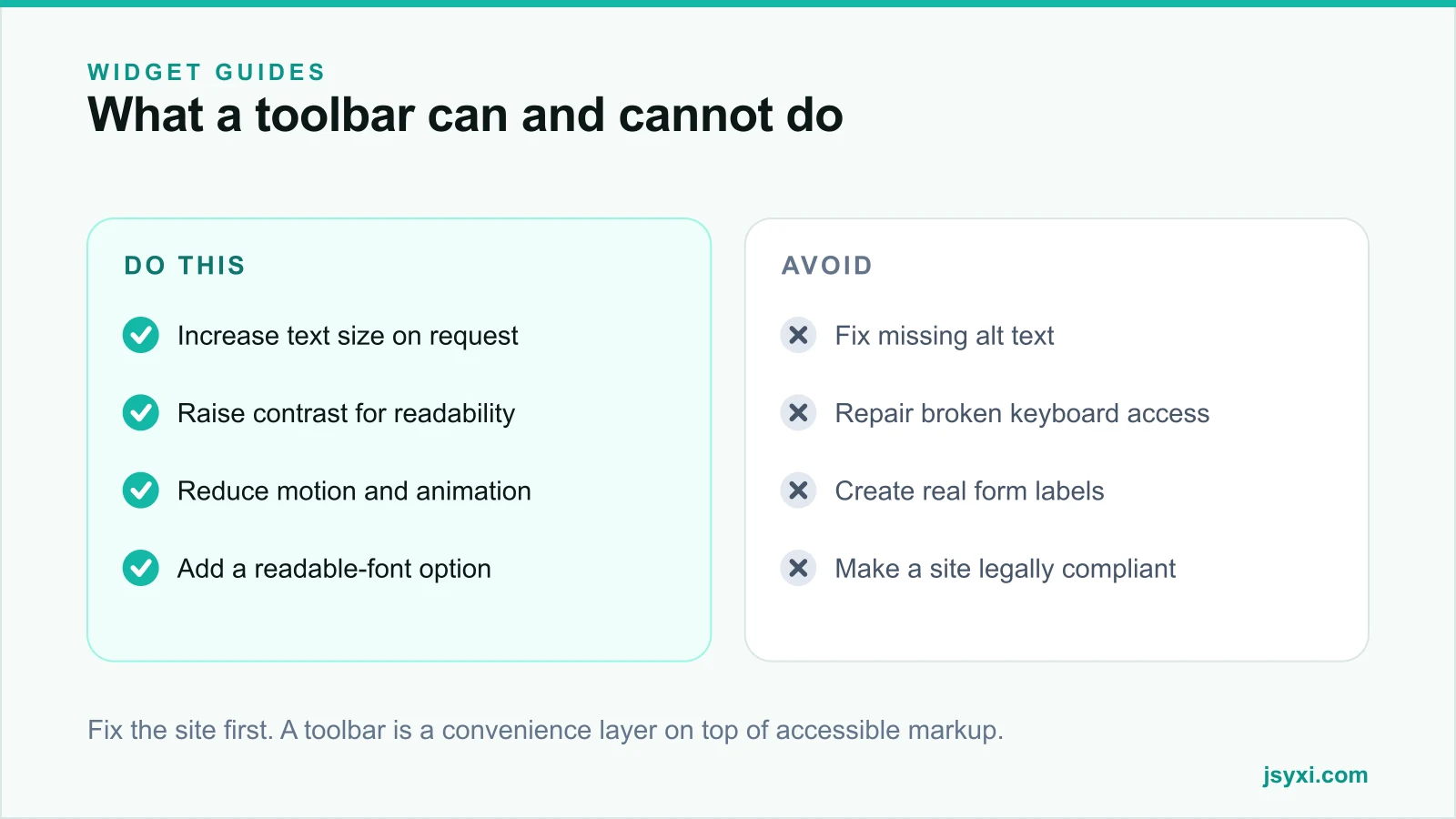
- Increase text size for visitors who find your default too small
- Raise contrast for readability in bright light or with low vision
- Reduce motion, disabling animation for visitors who find it uncomfortable
- Offer a more readable font, which some dyslexic readers prefer
- Add a reading guide or larger cursor, which some visitors find helpful
- Increase link and heading emphasis, making a page easier to scan
These are real conveniences. Many visitors do not know their browser and operating system already offer equivalents, so an on-page control gets used.
What it cannot do
This is the important half:
- It cannot write alt text for images that have none
- It cannot repair keyboard access that is broken
- It cannot create real form labels where placeholders were used instead
- It cannot fix heading structure or missing landmarks
- It cannot make a modal trap and restore focus correctly
- It cannot make a drag-only slider operable by keyboard
Screen reader users, who are among the people most affected by inaccessible sites, generally do not use these overlays at all - they use their own software, which reads your markup directly. If the markup is wrong, the overlay changes nothing for them.
Overlays are not compliance
Vendors of automated accessibility overlays often promise legal compliance. Treat those claims with caution:
- Overlays have been widely criticised by disabled users and accessibility practitioners
- They have been cited in legal complaints rather than preventing them
- Automated detection cannot judge whether alt text is meaningful or whether a heading describes its section
- An overlay that interferes with a visitor's own assistive technology makes things worse
The honest position: fix your site, then add a toolbar as a convenience if you want one.
Fix the site first
Before adding any widget, run the checks that find real barriers:
- Navigate the whole site with the keyboard alone
- Check contrast on body text, placeholders, and disabled states
- Confirm every meaningful image has alt text
- Confirm every form field has a visible, associated label
- Test at 200 per cent zoom
- Confirm errors are announced, not just coloured
Our website accessibility checklist walks through all of it in an afternoon.
Then add the toolbar, carefully
The Accessibility Toolbar widget lets visitors adjust text size, contrast, and readability. If you add one:
- The launcher must be keyboard reachable and clearly labelled
- It must not cover your primary action or the checkout button
- It must remember the choice across pages, or it is useless
- It must be dismissible, and must not fight the visitor's own settings
- It must respect system preferences already set, such as reduced motion
- It must not be heavy - an accessibility widget that slows the page harms everyone
Place it with the embed snippet guide, and test the whole site again with the toolbar active. Contrast modes in particular can break layouts.
Publish an accessibility statement
More useful than any widget, and often expected:
- What standard you work to, and where you currently fall short
- Known issues and when you plan to fix them
- How to report a problem, with a monitored contact route
- The date it was last reviewed
Honesty here is worth more than a badge claiming perfection.
Common mistakes to avoid
- Treating the toolbar as the accessibility project. It is the last five per cent.
- Believing a compliance guarantee. No overlay can deliver one.
- A launcher that covers the pay button on mobile. Test with the keyboard open.
- Settings that reset on every page. The visitor will not set them twice.
- Never testing with the toolbar on. High-contrast modes break layouts.
Frequently asked questions
Does an accessibility toolbar make my website compliant?
No. It cannot fix missing alt text, broken keyboard access, unlabelled forms, or bad heading structure - the issues most standards and complaints centre on. Fix the markup; treat the toolbar as a convenience.
Are accessibility overlays a good idea?
As an optional convenience layer on an already accessible site, they help some visitors. As a substitute for fixing the site, they are widely criticised and have featured in legal complaints rather than preventing them.
What should I fix before adding a toolbar?
Keyboard access, text contrast, alt text, real form labels, heading structure, and zoom behaviour. Those account for most real-world barriers.
Do screen reader users use accessibility toolbars?
Generally not. They use their own assistive software, which reads your markup directly - which is why the markup has to be right.
Next steps
Run the five-check accessibility audit on your homepage, a product page, and your checkout. Fix keyboard access first, then add the Accessibility Toolbar widget as a convenience and publish an honest accessibility statement.
Start free and build on top of markup that already works.